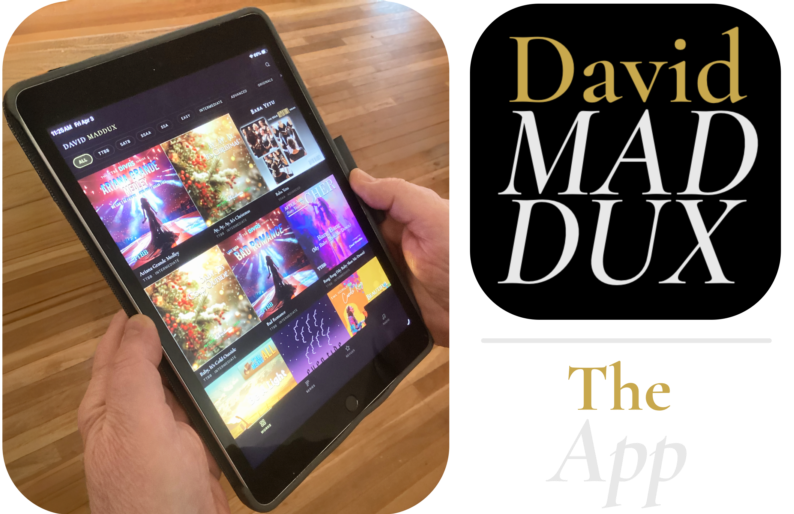
Browse, preview, and purchase from a catalog of 350+ choral works — with David Maddux Radio built in. Install it on your phone or tablet in three taps.
Open the AppWorks in any browser · Install to home screen for the full experience
Browse, preview, and purchase from a catalog of 350+ choral works — with David Maddux Radio built in. Install it on your phone or tablet in three taps.
Open the AppWorks in any browser · Install to home screen for the full experience
Phone & Tablet · Open in your mobile browser
First, open the app in your browser — then follow the steps below to add it to your home screen.
Open the App →Look for the share icon in your browser toolbar — the box with an arrow pointing up, highlighted here in blue.

Scroll down in the share sheet until you see "Add to Home Screen" and tap it.

You'll see the app name and icon. Make sure "Open as Web App" is toggled on, then tap Add in the top right corner.

Look for the share icon in your browser toolbar — the box with an arrow pointing up, highlighted here in blue.

Scroll down in the share sheet until you see "Add to Home Screen" and tap it.

You'll see the app name and icon. Make sure "Open as Web App" is toggled on, then tap Add in the top right corner.
